
# License booking & cancellation
# Book a new license
This guide shows you how to book a paid license in DocCheck Access.
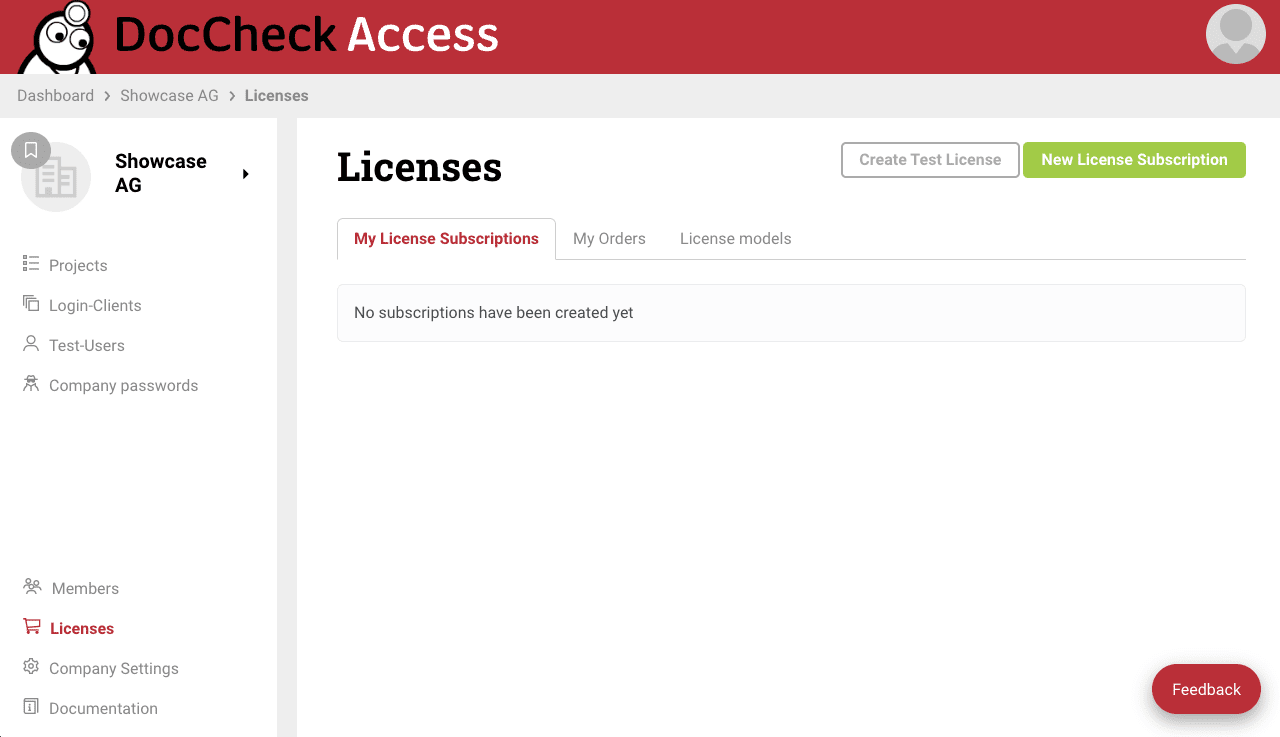
In your company area, go to the left main navigation and click Licenses. There you will see all your active license setups at a glance.
If you have not booked any licenses yet, this overview will be empty.Click the New License Subscription button in the top right. A new input form will open.
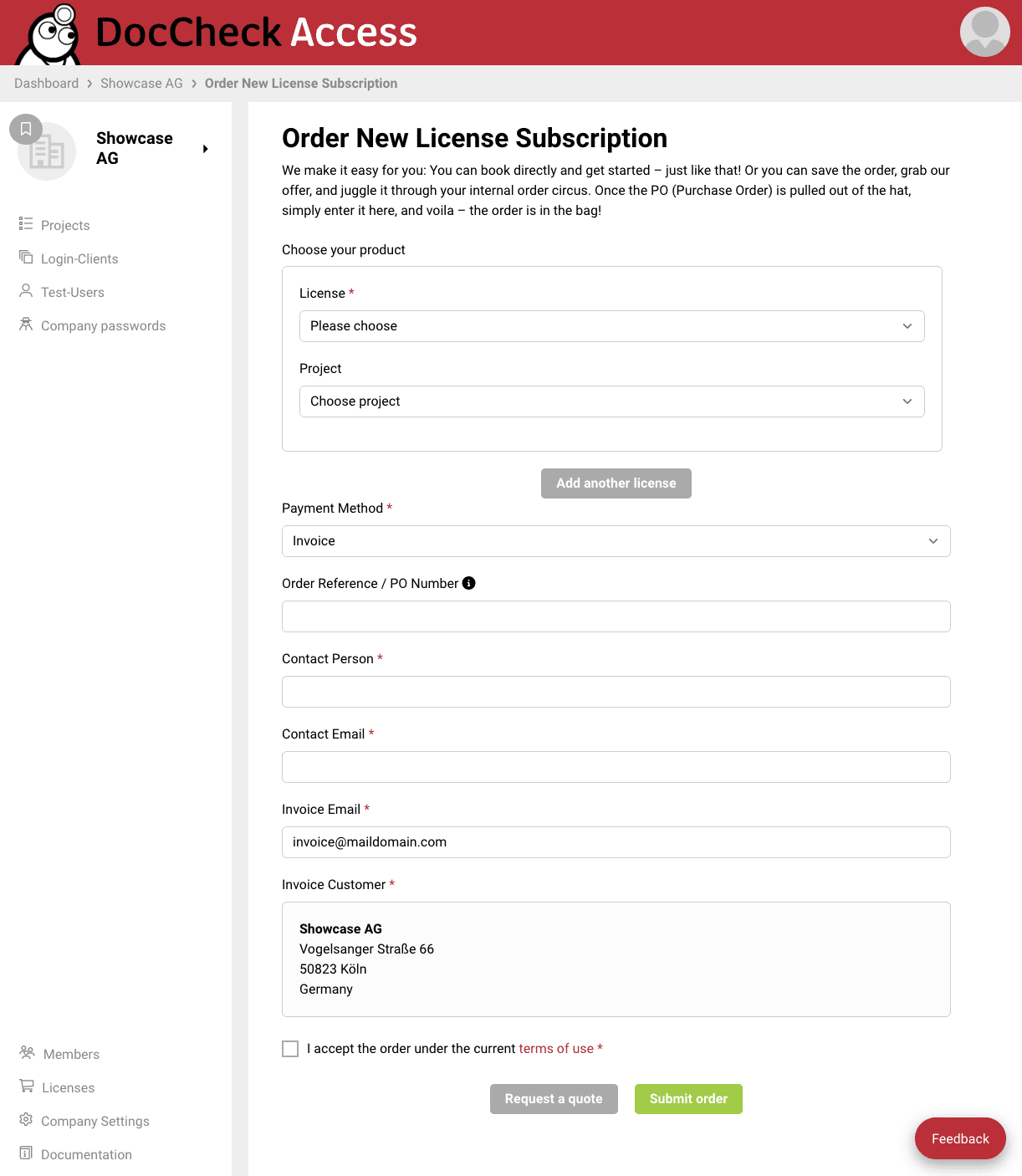
In the form, select all relevant building blocks: the desired License (Economy or Business), the Project, and the corresponding Login Client.
If you need an Order Reference /PO Number but first require a quotation, click Request a quote at the end. You can add the PO number later and then finalize the booking. Otherwise, you can provide the PO number directly during booking.
Provide a Contact Person and their Contact Email to ensure smooth communication.
For the initial order, add a Invoice Email and review the details under Invoice Customer.
Accept the terms of use and click Submit order to complete the booking.
Info
PO Number:
- You can enter your PO number (purchase order) directly during the booking process. If you don’t know it yet and want to add it later, click Request quotation at the bottom of the form for now. You can insert the PO number later and finalize the booking afterwards.
Quote:
- If you first need an internal alignment and only require an offer, click Request quotation at the very bottom. Afterwards, you can view and download the generated quotation as a PDF in your license overview at any time.
# Cancel a license
This guide shows you how to cancel a paid license in DocCheck Access.
In your company area, go to the left main navigation and click Licenses. There you will see all your active license setups at a glance.
In the overview, click the license setup you want to cancel to open the detailed view.
Click the Cancel Subscription button in the top right.
Confirm your cancellation in the safety confirmation dialog.