
# Deeplinks Economy
Summary
Direct links to protected content. Users are guided through login if needed and then returned to the target page.
# Purpose
A deeplink lets you link to a specific protected subpage instead of only the general home page of your login client. If necessary, the user is guided through login and is then redirected to the configured redirect URL. Deeplinks are useful for campaigns, newsletters, and product links.
Note
A deeplink does not trigger a classic username/password login. Users are logged in via the link without entering their own credentials. Additional data scope requests are not possible.
# Prerequisites
- A login client with an Economy license or higher
- Access to the associated company account and project in DocCheck Access (opens new window)
- A complete target URL for the protected content
# Create a deeplink
- Open DocCheck Access (opens new window).
- Select the company account, project, and then the required login client.
- Open the Deeplinks tab. If no deeplink exists yet, an empty overview is displayed.
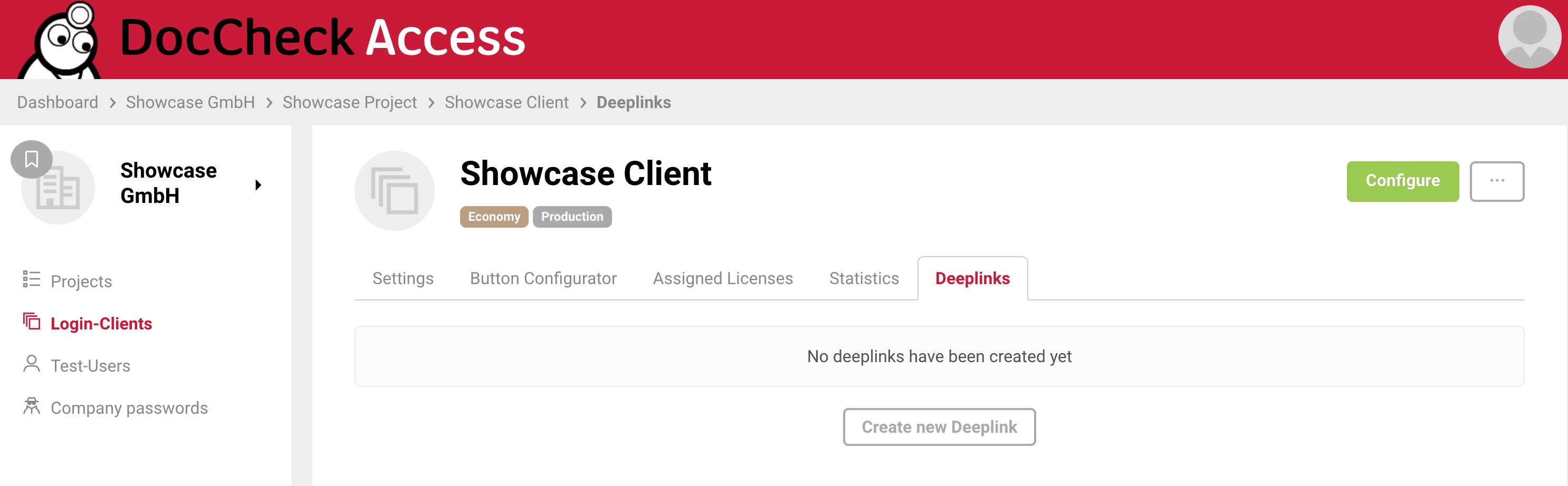
- Click “Create new Deeplink”.
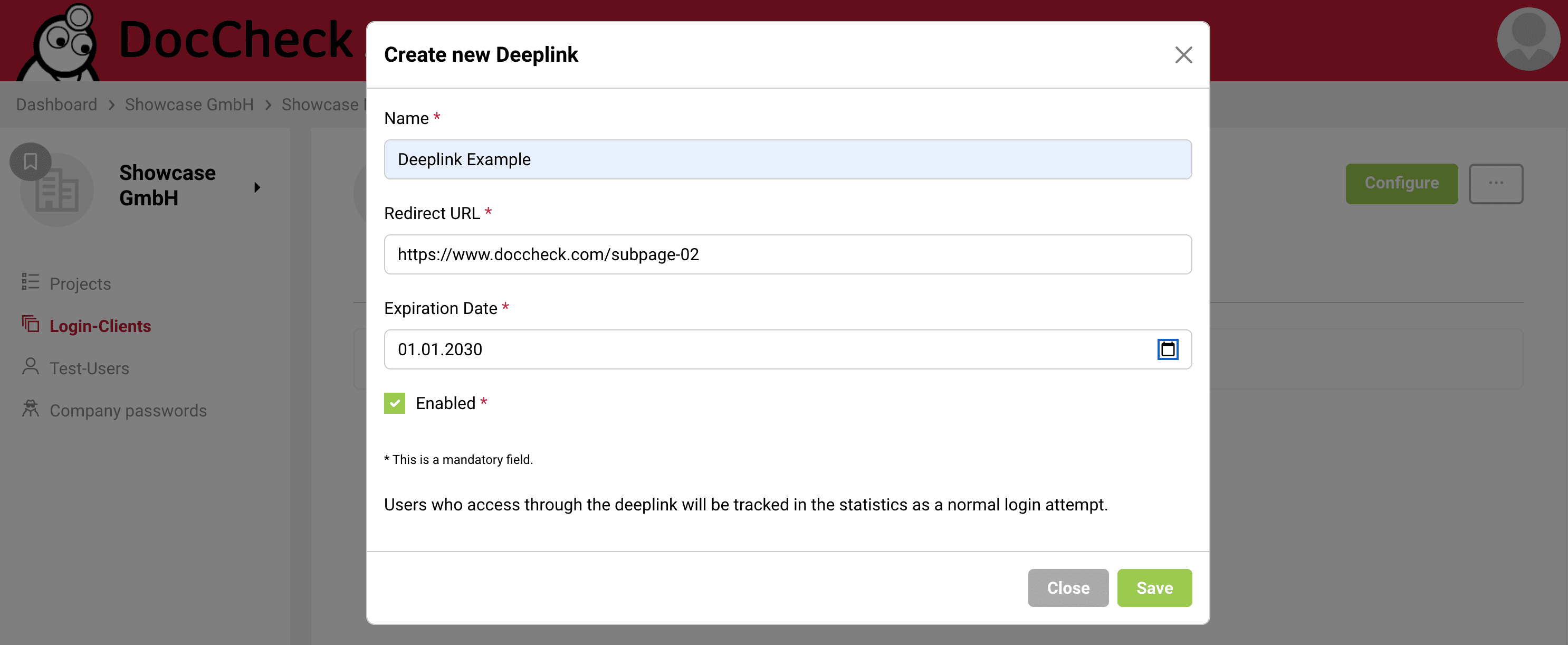
- Complete the fields in the dialog and click “Save”.
# Fields at a glance
| Field | Description |
|---|---|
| Name | A descriptive name that helps you identify the deeplink in DocCheck Access. |
| Redirect URL | The complete URL of the target page to which users are redirected after a successful login. |
| Expiration Date | The date until which the deeplink can be used. |
| Enabled | Determines whether the deeplink can be used. Clear this option if the link should be temporarily unavailable. |
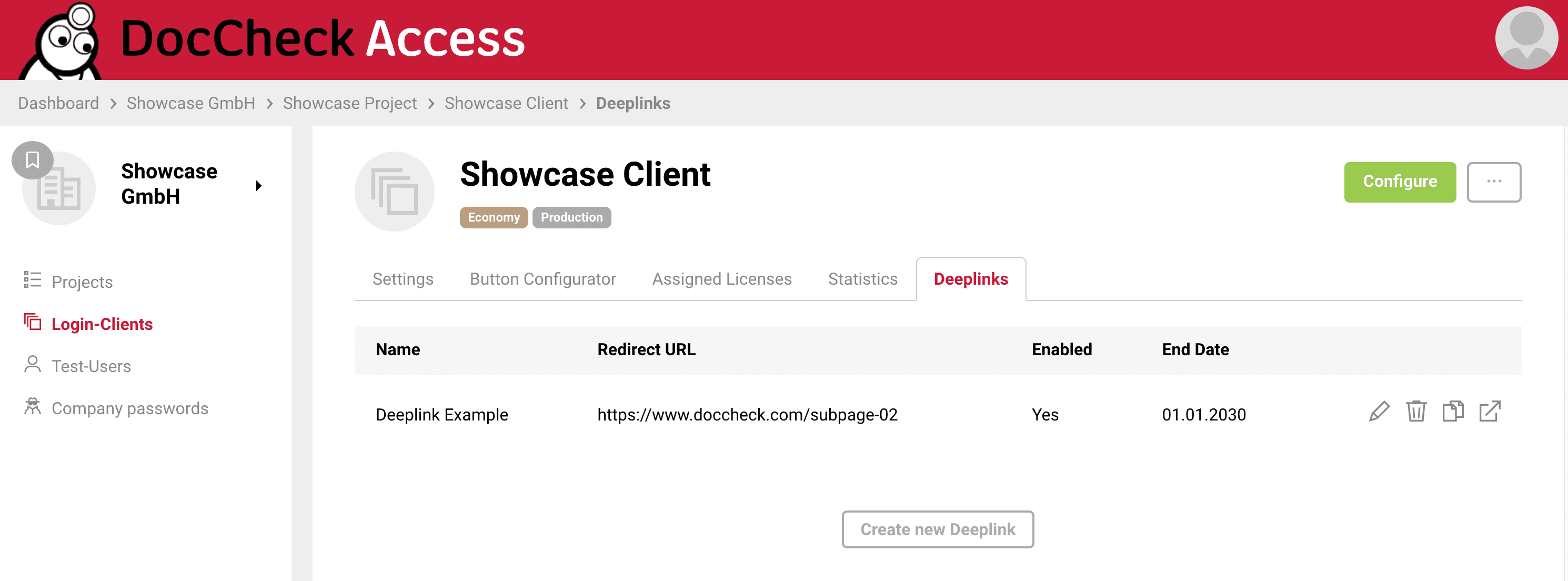
After saving, the deeplink appears in the login client's overview.
# Manage and use deeplinks
The overview shows the name, redirect URL, enabled status, and end date of every deeplink for the login client. Use the icons on the right to:
- edit an entry,
- delete an entry,
- copy the deeplink, or
- open and test the deeplink.
Use “Create new Deeplink” to add more target links as needed. Access through a deeplink is tracked in the statistics like a normal login attempt.
# Behavior
# User flow
- A user clicks the deeplink.
- Without having to enter any credentials, the user is redirected via the login to the redirect_URI stored in the deeplink.
# Notes
- Use an HTTPS URL as the redirect URL whenever possible.
- Test the deeplink after creating it by using the open icon.
- Choose an appropriate expiration date and disable or delete deeplinks that are no longer required.
- Create separate deeplinks for different target pages, countries, or languages.
- Deeplinks complement the Redirect & State flow.